

Navigation
Install the app
How to install the app on iOS
Follow along with the video below to see how to install our site as a web app on your home screen.
Note: This feature may not be available in some browsers.
Thêm tùy chọn
Style variation
You are using an out of date browser. It may not display this or other websites correctly.
You should upgrade or use an alternative browser.
You should upgrade or use an alternative browser.
Hỏi | Đáp - Request phần mềm, game, ứng dụng...
- Thread starter So_No_Mi
- Ngày gửi

- 28/5/11
- 12,717
- 9,710
đọc tạm tiếng em nhé2 ô trên và dưới của bảng pack extension chọn cái gì vậy?
mình chưa làm mấy cái này bao giờ
1. Pack the Extension After Installing
If you’ve already installed the extension that you want to download, you can just repack the extension into a CRX file. Before you do anything you need to know the Extension ID of the extension you want to download. Since you’ve already installed the extension, you can get the extension ID directly from the Chrome extensions settings page.
To start, click on the menu icon, and select the “Extensions” option from the “More tools” options.

The above action will open the Extensions page. Select the “Developer mode” checkbox, scroll down, find the extension you want to repack and note the extension ID.

Once you have the extension ID, press “Win + E,” and navigate to the following location in the File Explorer:
C:\Users\<Username>\AppData\Local\Google\Chrome\User Data\Default\Extensions
Don’t forget to replace “<Username>” with your actual username. Find the folder with the extension ID, and copy it to your desktop.
Note: if you are using other operating systems like macOS (usually inside ~/Library/Application Support/ folder) or Linux (usually inside ~/.config/ folder), you need to find the relevant application folder.

Back on the extensions page, click on the “Pack extension” button.

This action will open a pop-up. Simply click on the “Browse” button.

In the Browse window, find the folder you copied earlier, expand it, select the folder with the version number and click on the “OK” button.

Click on the “Pack Extension” button. You can just ignore the Private Key field.

With the above instructions, you’ve successfully created the CRX file. In fact, if you open the extension folder on your desktop, you will see your CRX file.

Nguồn
https://www.maketecheasier.com/download-save-chrome-extension/
Chromium mấy bản gần đây dùng chán lắm, mấy tháng nay mình quay về với firefox rồi.

- 14/9/07
- 984
- 386
xin daemon tool free xài vĩnh viễn, bản nào càng đơn giản càng tốt, ko cần pro

- 16/2/08
- 10,341
- 3,333
Xài bản lite đi, free với ads, tính năng đủ xài.xin daemon tool free xài vĩnh viễn, bản nào càng đơn giản càng tốt, ko cần pro
https://www.daemon-tools.cc/products/dtLite

- 19/8/05
- 462
- 419
Cho mình hỏi soft nào chỉnh sửa video tốt vậy? Mình cần chỉnh vài thứ đơn giản cho video thôi.
- 28/5/11
- 12,717
- 9,710
Nếu chỉ cắt xén chèn logo thì dùng Any Video ConverterCho mình hỏi soft nào chỉnh sửa video tốt vậy? Mình cần chỉnh vài thứ đơn giản cho video thôi.
http://torrentproject.se/7639e8a0e4...e-5-8-2-Multilingual-+Serial-Key-torrent.html
Còn phức tạp hơn thì dùng Adobe Media Encoder hoặc Vegas.
- 19/8/05
- 462
- 419
Cảm ơn bác nhiều!!!!Nếu chỉ cắt xén chèn logo thì dùng Any Video Converter
http://torrentproject.se/7639e8a0e4b83cfd1d3eb8e57dc33b6c8c2d7715/Any-Video-Converter-Ultimate-5-8-2-Multilingual-+Serial-Key-torrent.html
Còn phức tạp hơn thì dùng Adobe Media Encoder hoặc Vegas.
- 11/11/06
- 505
- 1
Ai tốt bụng cho mình xin link dow autoCad + Inventor với ^^

- 12/8/06
- 18,040
- 17,623
Trước giờ game Resident evil 6 mình chơi bình thường, bữa nay vào thì bị lỗi này, sau khi update ấy.
Sửa hoài không được, ai biết nó bị làm sao chỉ cho mình với :(
- 28/5/11
- 12,717
- 9,710
Trước giờ game Resident evil 6 mình chơi bình thường, bữa nay vào thì bị lỗi này, sau khi update ấy.
Sửa hoài không được, ai biết nó bị làm sao chỉ cho mình với :(
Crack đểu. Nếu update bằng sờtrim thì có thể do file update bị lỗi.
- 12/8/06
- 18,040
- 17,623
Crack đểu. Nếu update bằng sờtrim thì có thể do file update bị lỗi.
mình update win bạn ơi, ý là trước update thì chơi bình thường :(
- 28/5/11
- 12,717
- 9,710
Cài lại C++ xem sao. Thỉnh thoảng update win gây lỗi C++.mình update win bạn ơi, ý là trước update thì chơi bình thường :(
- 12/8/06
- 18,040
- 17,623
Cài lại C++ xem sao. Thỉnh thoảng update win gây lỗi C++.
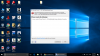
Mình cài lại thì nó hiện lên thế này hoài bạn ơi!
- 28/5/11
- 12,717
- 9,710



- 16/2/08
- 10,341
- 3,333
@hixhix123: gửi file excel lên xem, chứ nhìn hình mình cũng k biết, rê chuột kéo lên xem 
@mrmshaha: vịnh cướp biển xem
http://www.nsaneforums.com/topic/161210-windows-7-sp1-phone-activation-download-links-repository/
@mrmshaha: vịnh cướp biển xem
http://www.nsaneforums.com/topic/161210-windows-7-sp1-phone-activation-download-links-repository/
Similar threads
- Trả lời
- 0
- Đọc
- 105

- Trả lời
- 0
- Đọc
- 185

- Trả lời
- 0
- Đọc
- 776
- Trả lời
- 0
- Đọc
- 652