First of all, making an entire character is VERY HARD on your first try. Editing existing ones to understand how things work is usually a better idea.
While Fighter Factory is a useful tool, it has some bugs in it that can mess up certain files when saving, so I don't recommend using it for everything. I usually use it to see if everything is at it's place in the sprite or animation files, and to add the clsn boxes.
To create a character, first you need to know what files it is needed for it.
PART 1.
You'll need the sprites of the character for every move you want it to be able to do. If the character is something you draw yourself, this is a huge amount of work if you want to make it good quality with many moves.
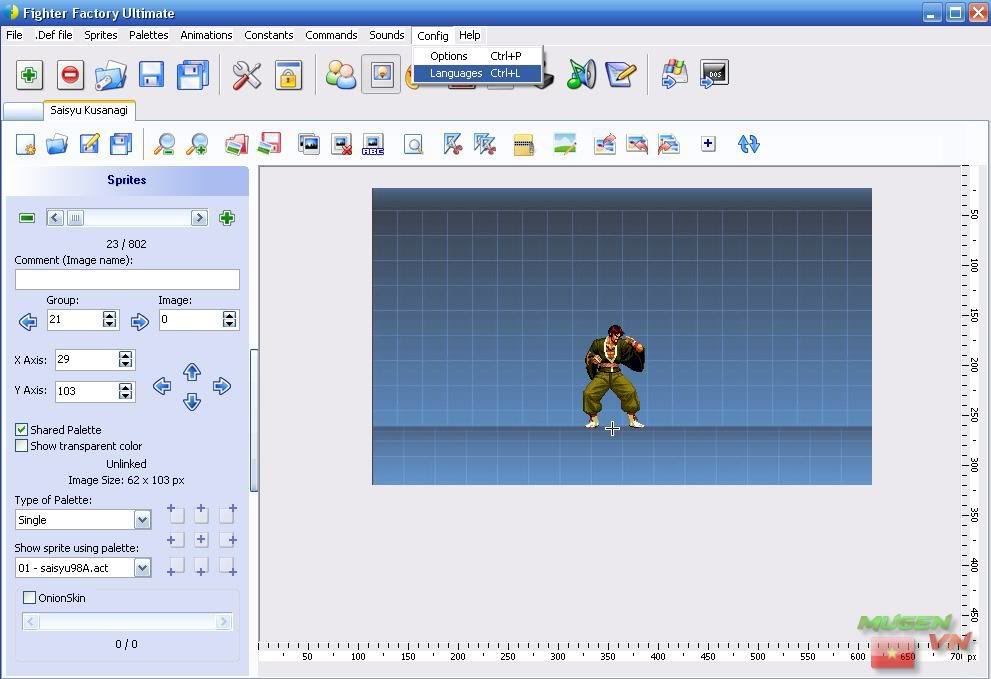
You need to add those sprites into your .SFF file. There are two ways for that, one is Fighter Factory, which is easy to use, but to change/add new stuff, it is a slow way. The better method is to use SPRMAKER with a batchfile.
You'll need four files for this. (plus all the images for your sprites)
One is obviously SPRMAKER.EXE.
The second is the batch file, which needs to have named something.bat, and have this line in it only :
sprmaker <charname.txt
charname = the name of your character.
The third file is that charname.txt, which is a text list of the images in the following format :
Code:
; ElecbyteSpr 0.1.0.1
; 133 groups
; 709 images
;
; Options
#
; Palette
1 ;<- This is Always 1
; Shared palette
2 ;<-This can be 1 or 2. 1 means the default is individual palette, 2 means the default is shared palette.
; End of options
; Output file
eriol.sff ; <-the name of your sff file that you want to create
; From here
# ; these three lines are optional
1 ; and tell "Do not use the default shared palette"
1 ; use 1=individual palette instead for this sprite
0000000000.pcx ; <- This is the name of your first sprite image
0 ; This is the sprite group number
0 ; This is the index number
44 ; This is the X axis of your sprite
125 ; This is the Y axis
; Until here is one sprite 's definition
;Second sprite starts here and uses the default Shared Palette option.
0000000001.pcx
0
1
44
129
;and ends here
0000000002.pcx
0
2
44
130
0000600000.pcx
6
0
74
130
0000500000.pcx
5
0
74
130
0002000000.pcx
20
0
44
131
...and so on
The fourth file is optional, and it is the SFFEXTRACT.EXE tool, which does the opposite of SPRMAKER, it makes the txt file and extracts the images from the completed sff.
For the images :
-They must all be 256 color pcx files.
-If they are part of the character (and not a helper or projectile), then they MUST USE the same palette for all of them. This is called SHARED PALETTE and works this way : If a file is set to shared palette, it uses the palette of the previous sprite in the sff file and ignores it's own. So your first image's palette must be used for all the remaining images, and those files should be added to the sff with a shared palette setting.
-The first (or last depends on what image editing software you use) color of the palette is the transparent color. Anything drawn with this color doesn't appear on the screen and is transparent.
-You shouldn't have over 200 individual palette sprites total in a character, as that can lag slower computers a lot.
-The X and Y Axis is the position on the image which will be the "middle".
The character will be placed so that this point is at the position where your character is standing. This is usually set at the character's feet for characters, and whatever you need for other stuff.
-There are REQUIRED sprites. See the DOCS\SPR.GIF image to understand which is which, these are all sprites for you character getting hit by attacks.
-While you can give any group and index number to any sprite, it is recommended to use the animation's number for the group number.
-I suggest using PaintShopPro for sprite and palette editing, but you can use whatever you want as long as it can work on 256 color pcx files.



 )
)

