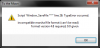
Đây là các hướng giải quyết, mềnh copy từ forum Freebird. Nói chung lại đều là Update =.=
[spoil]
1. Try These Threads First:
If you are having a problem running an Amaranth Games title the two threads below should be your first stops -
Technical Issues - FAQ:
http://www.amaranthia.com/modules/new ... ewtopic.php?topic_id=7238
Game Crashes - FAQ:
http://www.amaranthia.com/modules/new ... ewtopic.php?topic_id=3449
If the two threads above failed to answer your question or ameliorate your problem then please proceed below.
2. Update Your Microsoft Windows:
Make sure all the latest updates are installed for your version of Microsoft Windows. You can check whether you have all the latest updates here:
http://www.windowsupdate.com
If your version of Microsoft Windows is not up to date, install the updates that are listed and attempt to play the game again.
3. Update Your Drivers:
Make sure your computer system is running all the latest drivers, particularly for your Video and Audio components. You can usually locate updates easily for your computer by visiting the website of your computer manufacturer. Most of the time driver updates are listed under "Support", "Drivers", "Updates", or "Downloads".
4. Update Your DirectX:
DirectX is necessary for Amaranth Games titles to run on your computer. If you're running an older version of DirectX it may be the source of your problem. You can update your DirectX installation by downloading the file located here:
http://www.microsoft.com/downloads/de ... 71-4c1b-bc6a-9b6652cd92a3
and running it from the location you downloaded it to. This file will scan your computer and download any updates for DirectX from Microsoft that are needed to bring your system up to date.
If you are using Windows Vista or Windows 7: You will need to right click the file once downloaded and select "Run As Administrator" from the list that appears. Your screen will dim slightly and a box will pop up that is asking a question. You must answer "YES" otherwise your system will not be updated.
5. Change your DEP settings:
This link from Microsoft will tell you how to change your DEP settings:
http://technet.microsoft.com/en-us/li ... x#XSLTsection124121120120
It's the same general procedure for Windows Vista and Windows 7.
The file you want to make the exception for is the main EXE file for the Amaranth Games title you are trying to play. An example of this, using the title Aveyond: Lord of Twilight, would be:
Aveyond - Lord of Twilight.exe
This main EXE is most likely located in the default installation directory. This is usually a subfolder of the Program Files directory which can typically be found in the root of your primary hard drive, usually represented in "My Computer" as C:
Continuing with the example above, the default installation directory for Aveyond: Lord of Twilight would be:
C:\Program Files\Aveyond - Lord of Twilight
If you are running a 64-bit version of Windows XP, Windows Vista, or Windows 7, the default installation path will be different. For a 64-bit version of Windows the default installation directory for Aveyond: Lord of Twilight would instead be:
C:\Program Files (x86)\Aveyond - Lord of Twilight
The examples provided above are valid for the English version of Windows only.
If you are not running an administrator account on your computer this will also not work as you will have insufficient privileges to make changes to the DEP subsystem.
6. Put DirectX Into Compatibility Mode:
The method below is not valid for Windows Vista nor Windows 7.
Go to RUN, type DXDIAG and hit enter. A box might pop up that asks for a yes or no answer, hit YES.
Once the program loads you should be looking at a box that has the title "DirectX Diagnostic Tool". Click the SOUND tab (it should be the 4th tab over from the left).
Slightly past the middle of the box, on the left hand side there should be a slider that has text on the left that reads "Hardware Sound Acceleration level". Drag the slider all the way to the left until the text over the slider says "No Acceleration".
Once you have done this hit the EXIT button in the lower right hand corner of the box.
7. Update Your Codecs:
Download the file at this location:
http://www.xpcodecpack.com/dl/XP-Codec-Pack-2.5.0.exe
It has XP in its name, but it's completely compatible with Vista and Windows 7.
This will update the codecs in your system which DirectX needs to run Amaranth Games titles.
Caution: Installing a codec pack can be very risky. It could go just fine. However, it could also make your computer completely mute, disabling your ability to playback any sound, or it could possibly (although highly unlikely) render your Windows completely inoperable. Proceed at your own risk.
[/spoil]
Hôm qua khó ngủ ngồi nghe sound track của game




![[Knight]Mare](/data/avatars/m/766/766690.jpg?1334832186)