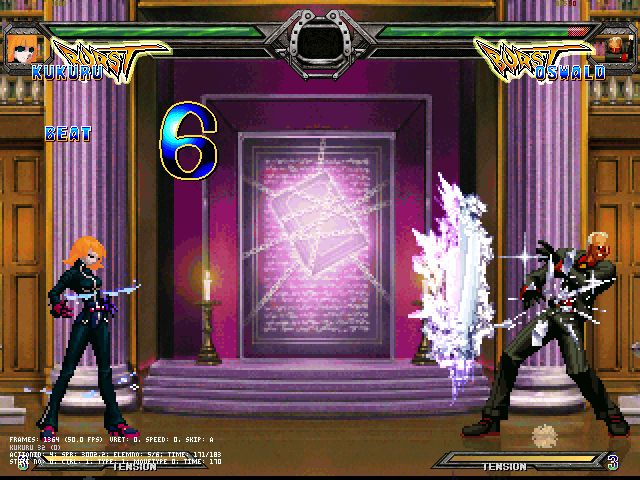
sau đây tui xin up 1 bài hướng dẫn bằng tiếng anh sưu tầm được (chủ yếu cách viết code để tạo chưởng) ráng dịch hé
Learning to program mugen characters by Detah:
Update 2/2/2005: Had I known that the new ZGTEAM board had a link to this thing I would have updated it a long time ago. I updated the ZGTeam link, made some of the code easier to read with some white space, and added some comments on MEE.
a “;” signifies a comment. Mugen will not read anything after a “;”
The .cmd is where you put your commands
The .air is where you put the animation definitions and hit boxes
The .cns is where you put the conditions/definitions to states
The .sff is where you put your sprites (2d images)
The .def is where you define what files are used by this char
The .snd is where you put the characters sound files
I suggest that you read through the docs before you read through this. Well at least look at the trigger and sctrl docs. (not the whole thing just scan it over. Most of the sctrls and trigger are fairly easy to understand.)
A “common” file is where the runs, walks, stands, blocks, etc... are located (not on all characters). This file is located in the Data folder in your Mugen folder.
A "base" (aka. template) is mainly a starting point it usually has a .def .cns .air .cmd and maybe an .sff and a common. Probably won't have a .snd. It’s a good idea to use Kung Fu Man as a base.
First I will explain a .def
[Info]
name = "(char name) by (your name)"
displayname = "(Char name)"
[Files]
cmd = nameoffilehere.cmd
cns = nameoffilehere.cns
st = extra states.cns ;not needed but it can help you find certain pieces of code.
st2 = extra states.cns ;same here
stcommon = common1.cns
sprite = nameoffilehere.sff
anim = nameoffilehere.air
sound = nameoffilehere.snd
The .def file is not that hard to understand. Just make sure that the file's name match the ones you put in the .def.
Now the .sff
This where you put the sprites for the character. You need a certain program to do this. MCM (Mugen character maker) and MEE (Mugen editing ensemble) are the two best.
Each sprite must be a .pcx image and have a palette on it. Two sprites cannot have two different palettes. To palette images you can use Paint Shop Pro or Photo Shop.
You have to give the sprites a group number and an image number
Group numbers are usually the same as the Action number in the .air
ie. [Begin Action 3000]
group number ------> 3000,0, 0,0, 5
its the first number 3000,1, 0,0, 5
in an .air statement
Image numbers (the second number in an .air statement) usually start at 0 and go up. An image number cannot be the same if it has the same group number. This will cause only the first sprite to be used. Ie. Sprites with 200,1 and 200,1 for numbers will only cause the first one to be used.
Seeing how we have started the .air in the .sff section. Lets move on to that.
The .air is where you put the animation definitions. Use notepad, wordpad or any text editor. Also you might want to use Airedit found in the Mtools downloaded at the mugen home page. To use it put airedit.cfg in your C: drive. Not in program files or my documents. Then put the airedit application in the folder where mugen is. Then just double click the application. This is used to find where to put boxes.
However there have been recent advances in MEE giving it a great .air editor. I highly recommend getting MEE. It’s CLSN box editor is perfect and a great time saver over Airedit.
I’ll now explain all the numbers in the sprites
200,0, 0,0, 2
The first number is a group number and the second is an image number. The next two are the offsets first x (side to side) then y (up and down) the last is how many ticks (1/60 of a second) you want the sprite displayed for.
An .air statement will probably look like this for an attack animation. (only without the spaces)
[Begin Action 200]
Clsn2: 1 ;Clsn2: is a gethit box or blue box. The 1 following it says how many boxes you want to define. In this case 1 box will be defined.
Clsn2[0] = -19,-68,12,-5 ;This defines the end points of the box.
200,0, 0,0, 2 ;This is the sprite in which has this box.
Clsn2: 1 ;Another Clsn2: box.
Clsn2[0] = -2,-66,29,-3
Clsn1: 1 ;Clsn1: is an attack box or red box.
Clsn1[0] = 30,-52,51,-35 ;This defines the end points of the box.
200,1, 0,0, 6 ;This would be your hitting sprite.
Clsn2: 1
Clsn2[0] = -19,-68,12,-5
200,0, 0,0, 2
Now if you have sprites that would have the same gethit boxes you can use a Clsn2default:
[Begin Action 1166]
Clsn2Default: 1 ;This says that you want a gethit box used through out the whole animation.
Clsn2[0] = -15,-63,13,1 ;This defines the end points.
Clsn1Default: 1 ;The same can be done with Clsn1: boxes.
Clsn1[0] = 13,-66,48,2
211,0, 0,0, 3 ;all of these sprites would have those two boxes but
211,1, 0,0, 3 ;remember just because they have a hit box (red box)
212,0, 0,0, 3 ;doesn’t mean that, that sprite is a hit the other person
212,1, 0,0, 3 ;sprite. That is all controlled in the hitdef. Which we will
201,0, 0,0, 3 ;get too later
201,1, 0,0, 3
210,0, 0,0, 3
210,1, 0,0, 3
This can be very useful in lengthy combos. Where it might take a long time to put all in those boxes.
LoopStart can be used to play a certain number of sprites over and over again. This can not be stopped except by a changestate or changeanim.
201,1, 0,0, 3 ;This sprite is played once
LoopStart
210,0, 0,0, 3 ;These two are repeated until the end
210,1, 0,0, 3
A sprite with -1 for a time will not change.
201,1, 0,0, 3 ;played once
210,0, 0,0, -1 ;it will stay at this sprite
210,1, 0,0, 3 ;THIS SPRITE WILL NOT BE PLAYED
Lets do the .cmd now.
You put your commands in the .cmd. You just need a text editor (notepad… etc.) for this one.
To put commands for moves in just put something like this up toward the top.
[Command] ;needed do not change
name = "name" ;name of the move goes in the “”
command = D, DF, F, x ;buttons pushed to do the command
On the buttons part the "," says that you hit the first button THEN hit the next. A "+" will say you hit both buttons at the same time. Those are the main signs you will use. No need to go much farther right now.
At the bottom you notice a bunch of coding after a line that looks like this
[Statedef -1]
DO NOT CHANGE THAT!!! Most of the entries will look like this.
; name of move here
[State -1] ;Don’t change this.
type = ChangeState ;This is the sctrl that changes your chars state.
value = 203 ;This is the state your char is changed to.
triggerall = command = "name" ;This is the name of the command from up top
triggerall = command != "holddown" ;Standing attacks should have this line
trigger1 = statetype = S ;A trigger saying you must be in a standing state
trigger1 = ctrl = 1 ;A trigger saying you must have control
All states must have at least one trigger1. You can have a trigger2 = this means that if trigger1 didn’t work it will check trigger2 to see if it works. triggerall are the conditions that all the triggers must meet.
One great thing about the .cmd is that you can put more than just ChangeState in there.
; power gain name of move
[State -1]
type = PowerAdd ;Poweradd changes the energy (not life) you have.
trigger1 = ctrl = 1 ;Must have control
trigger1 = 1 ;Happens every game tick.
trigger1 = Var(20) != 1 ;This means that variable 20 CANNOT equal 1
value = 5 ;The amount of energy gained
That is an example of an energy gain on a character. (a pretty fast one at that)
If you can code in the .cmd the .cns isn’t much different (contrary to most beliefs), but it is still one of the hardest things to program.
A .cns contains all the hit and movement data for your moves.
Before we start though I’d like to mention that MEE also has a great .cns editor as well. Just go get MEE it’s the best.
First lets look at the StateDef part.
; name of move
[Statedef 1000] ;this number should match the changestate in the .cmd
type = S ;this means this is a standing type state
movetype= A ;this means it is an attack move
physics = S ;this means it has standing physics
juggle = 1 ;this move takes one juggle point (not something I often worried about)
velset = 0,0 ;these are the starting velocities of your char
ctrl = 0 ;the char does not have control while in this state
anim = 1000 ;the animation used (usually the same number as the statedef. Animation numbers come from the air file
poweradd = -100 ;how much power this move gives/takes away
This part is best explained in the doc called “cns”. Some of the more common sctrls you will use are HitDef and Changestate.
Here’s an example of a HitDef.
[State 1000, 1] ;the state number should match the statedef number. After the "," you can put anything. Instead of a 1 I could have put a 6 or even HitDef or hitting4. It doesn’t matter.
type = HitDef ;this means the state is a hitdef.
trigger1 = AnimElem = 2 ;this means the hitdef is activated on the second sprite of the animation
trigger2 = AnimElem = 4 ;this second trigger causes this to happen on the forth sprite of the animation
attr = S, NA ;the first part means it is a standing attack. The second part means that it is a Normal Attack.
damage = 30 ;the damage for each time someone is hit.
animtype = Light ;this a light hitting move
guardflag = MA ;what states types they must be in to guard against your move. In this hitdef it’s mid(standing) and air.
hitflag = MAF ;what states you can hit them in. in this hitdef its mid, air, and falling
priority = 3, Hit ;this is the hit priority of the hit. High priorities will override ones with low priorities.
pausetime = 0,0 ;the time the game pauses when the player hits. The second number is if the player blocks.
numhits = 1 ;number of hits possible for each time the hitdef is activated.
sparkno = 0 ;the hit “spark” used when the char hits the other guy.
sparkxy = -10,-35 ;the “sparks” x,y offsets
hitsound = 5,0 ;the sound it makes when you hit the other guy. The first number is for the group second for the sound number. (just like the .sff)
guardsound = 6,0 ;the sound made when guarding.
ground.type = High ;this will determine what animation the other guy goes into. Along with animtype.
ground.slidetime = 5 ;this is how long they slide when hit.
ground.hittime = 11 ;this is how long they are in the hit state.
ground.velocity = 0,0 ;this is the velocity that the other will have if hit. X first then y.
airguard.velocity = -1.9;this is the velocity when guarding in the air. In this case only an X velocity is used
air.velocity = -1.3,-3 ;velocity when hit in the air.
This HitDef hits the other guy twice, once when it is on the second sprite of the animation and the second on the fourth sprite of the animation. You may be asking your self “Can I put more than one HitDef in a state?”. Yes you can.
A ChangeState in the .cns is different then the ones in the .cmd.
[State 1000, 4] ;must have the same state number
type = ChangeState ;the changestate sctrl
trigger1 = AnimTime = 0 ;this is probably the most used ending trigger for changestates. This states that when the animation has reached the end it changes state. NOTE: This only works with animations without LoopStart or a -1 for time signature.
value = 0 ;the state you change too most often 0 (standing state)
ctrl = 1 ;you regain control
Yes you can put more than one changestate in a move. The .cns is no more than a StateDef and states. States follow a pattern like this.
[State ****, example]
type = (sctrl) ;the sctrl doc explains them all
triggers ;the triggers doc explains them all
sctrl values ;explained in the sctrl doc
That’s it. Not much more to it except patience. NEVER expect to be right the first time you make any move. If you’re wrong try again and again. And if you are stuck check the docs again. If you are still stuck look for a forum and ask them. (like
http://zgteamforum.proboards28.com/index.cgi newest link as of 2/2/2005 They are willing to help. If the link doesn't work go to a search engine and type zgteam. You should find something.)




 [
[